


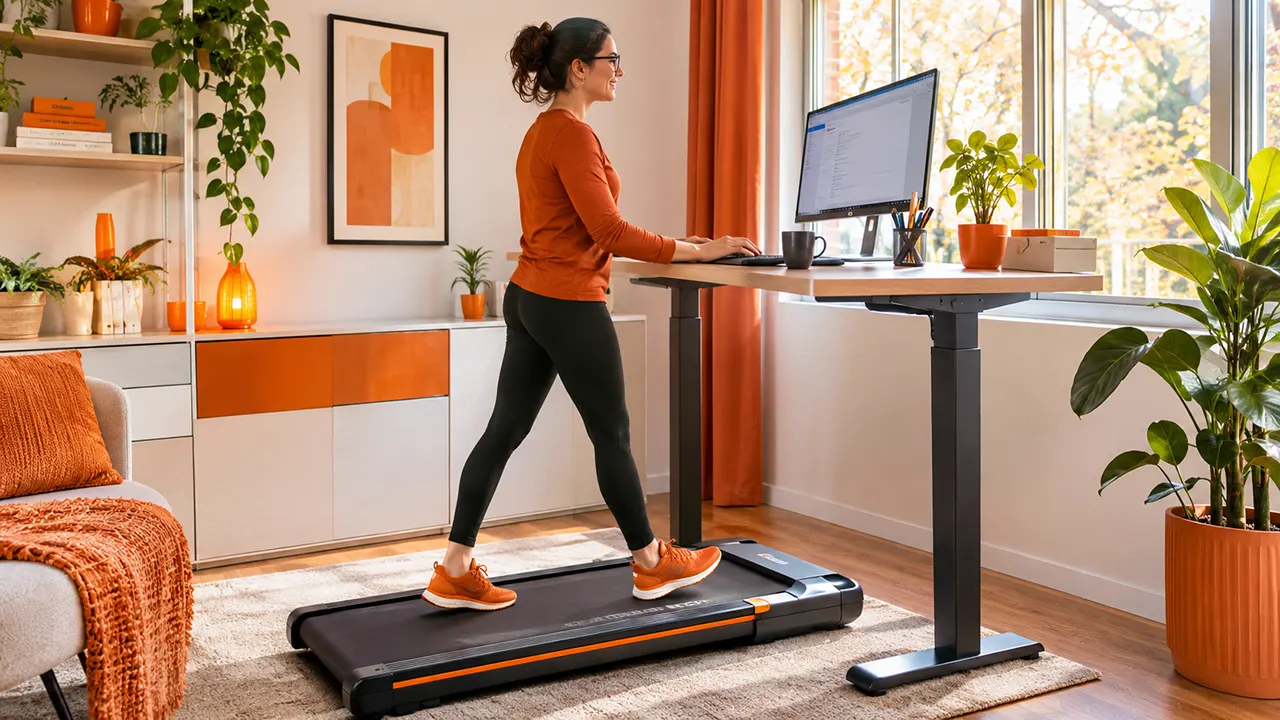
Using a walking pad while working is a simple way to add movement to a desk-based day. You can walk slowly while checking emails, reading documents, listening to meetings, or handling other routine tasks. However, walking and working at the same time takes some practice.
The key is to start slowly, choose suitable tasks, and adjust your workstation before increasing your walking time. You also need to know when to stop walking and focus on your work.
If you are new to walking pads, this guide explains how to use one while working, what speed to start with, how long to walk, and which tasks are easier to perform on a moving treadmill.
How to Use a Walking Pad While Working: Start With These 7 Steps
You do not need a complicated setup to begin. Follow these seven steps to make your first walking sessions more comfortable and manageable.
Step 1: Prepare Your Walking Pad and Workspace
Start by placing your walking pad on a firm, level surface that meets the manufacturer’s requirements. Check the power cable, walking belt, controls, and available space before switching it on.
Keep the area around the machine clear. Remove loose cables, rugs, bags, and other objects that could interfere with your movement.
Next, check the following:
- Read the walking pad’s user manual.
- Confirm that your floor can support the machine.
- Check the walking belt for visible damage or obstruction.
- Locate the normal stop control.
- Learn how the emergency stop feature works, if your model has one.
- Make sure you have enough space to step on and off safely.
If you plan to use the machine under a desk, check that the desk legs and crossbars do not interfere with the walking pad.
A suitable workstation makes it easier to focus on your work instead of constantly adjusting your equipment.
Step 2: Adjust Your Standing Desk and Monitor
Your desk should allow you to work comfortably while standing on the walking pad.
Remember that the walking surface raises your feet above the floor. A desk that feels comfortable when you stand on the floor may become too low when you step onto the machine.
Measure the walking pad’s deck height and check your standing desk’s adjustment range.
A useful starting formula is:
Target desk height = Walking pad deck height + Your elbow height above the walking surface
For example, if your walking pad deck is 2.5 inches high and your elbow height above the deck is 42 inches, your initial target desk height is 44.5 inches.
This is an estimate, not a universal ergonomic standard. Adjust the keyboard position until your shoulders feel relaxed and your wrists remain relatively straight.
Position your monitor directly in front of you. Adjust its height so you can look at the screen without repeatedly bending your neck.
An external keyboard and mouse can help you maintain a comfortable working position. They are especially useful if you use a laptop because its screen and built-in keyboard cannot always be positioned independently.
For more detailed instructions, see our guide to walking pad desk setup and ergonomics.
Step 3: Start at a Comfortable Walking Speed
Do not begin your first work session at a fast walking speed.
Start with the lowest practical speed supported by your machine. Walk naturally and pay attention to your balance, posture, and ability to remain comfortable.
You should be able to:
- Walk without holding the desk for support.
- Keep your eyes on the screen when appropriate.
- Maintain a natural stride.
- Reach your keyboard and mouse comfortably.
- Stop the machine without difficulty.
If you feel unsteady, slow down or stop.
There is no single ideal walking speed for every user. Your comfortable pace may depend on your height, walking experience, balance, footwear, and the type of work you perform.
The purpose is to add gentle movement while keeping control of your body and your work.
Step 4: Practice Walking Before Adding Work
Give yourself time to become familiar with the walking pad before combining it with computer tasks.
For your first practice session, concentrate on walking rather than typing or reading.
Learn how to:
- Start the machine safely.
- Walk with a natural stride.
- Maintain a comfortable position.
- Adjust the speed.
- Slow down and stop.
- Step off safely after the belt stops.
Once you feel comfortable, introduce simple activities such as listening to a podcast or reviewing an easy document.
Do not try to handle several demanding activities during your first session.
This gradual approach helps you understand how walking affects your concentration and coordination.
Step 5: Match Walking to Your Work Tasks
Not every office task is suitable for a moving workstation.
Some activities require little physical precision. Others involve detailed hand movements, careful reading, or extended typing.
Choosing the right tasks makes walking while working much easier.
| Work activity | Walking suitability |
|---|---|
| Listening to podcasts | High |
| Listening to webinars | High |
| Routine phone calls | High |
| Reading simple documents | Moderate |
| Checking emails | Moderate |
| Light typing | Moderate |
| Writing detailed reports | Depends on individual performance |
| Graphic design | Usually better while stationary |
| Complex spreadsheets | Usually better while stationary |
| Precision mouse work | Usually better while stationary |
Tasks that work well while walking
Listening to audio content is one of the easiest activities to combine with walking. You can attend an audio meeting, listen to a training session, or review a podcast without making frequent mouse movements.
Routine phone calls can also work well, particularly when you use a headset.
Reading simple documents and checking emails may become comfortable after some practice. However, you should stop walking if screen movement or physical distraction makes reading difficult.
Tasks better performed while stationary
Detailed graphic design, video editing, complex spreadsheet work, and precision mouse operations often require more control.
Walking may affect your hand movements and typing performance. It is better to stop the belt when a task requires accuracy or sustained concentration.
A useful rule is simple: walk during low-demand activities and stop when the work requires greater precision.
Step 6: Build Short Walking Sessions Into Your Workday
You do not need to walk continuously throughout your workday.
Instead, introduce walking sessions during suitable activities and alternate them with sitting or stationary standing.
If you are a beginner, start with a short session that feels manageable. Increase the duration gradually as you become more comfortable.
For example, you could organize your workday like this:
| Work activity | Suggested position |
|---|---|
| Checking routine emails | Walking |
| Listening to a meeting | Walking or standing |
| Reading documents | Walking or sitting |
| Writing a detailed report | Sitting or standing |
| Graphic design | Sitting |
| Taking a movement break | Walking |
This is a flexible example, not a prescribed exercise schedule.
Pay attention to fatigue. If your legs feel tired or your concentration declines, stop walking and change positions.
You should also avoid replacing every sitting period with prolonged standing. Changing positions throughout the day is more practical than remaining in one position for too long.
Step 7: Monitor Comfort and Work Performance
After each session, consider how your body and work performance responded.
Ask yourself:
- Was my walking pace comfortable?
- Could I type accurately?
- Did I maintain a natural posture?
- Did I feel distracted?
- Did my legs or feet become uncomfortable?
- Was I able to stop and step off safely?
If walking affects your concentration or makes you uncomfortable, shorten the session or choose a simpler task.
Do not increase your walking time just because you want to reach a particular daily target.
Your walking routine should fit your work and physical comfort.
What Is the Best Walking Pad Speed While Working?
The best speed is one that allows you to walk naturally without interfering with your work.
A faster pace is not necessarily better. When you walk too quickly, you may find it harder to type, use a mouse, read, or maintain your position.
Use these general guidelines:
- For beginners: Start at the lowest practical speed and become familiar with the belt.
- For reading and listening: Choose a comfortable pace that does not affect your balance or attention.
- For routine emails: Use a pace that allows relaxed hand movements and accurate typing.
- For phone calls: Choose a pace that feels stable and does not interfere with speaking.
- For detailed computer work: Stop the walking belt when necessary.
Do not treat these recommendations as fixed speed settings. Walking pads have different minimum speeds, and users have different comfort levels.
Why Walking Speed Can Affect Typing
Walking introduces movement while your hands are performing a separate task.
A 2020 systematic review and meta-analysis examined 18 studies involving treadmill and cycling desks. The researchers found that treadmill-desk use reduced typing speed compared with conventional seated work. However, selective-attention tests did not show the same decline.
This suggests that walking can affect certain work activities without necessarily producing the same effect on every measure of cognitive performance.
You can read the research in The Effects of Cycle and Treadmill Desks on Work Performance and Cognitive Function.
The practical lesson is to test your own performance. If your typing accuracy declines, slow down or stop walking.
How Long Should You Walk on a Walking Pad While Working?
There is no universally established walking duration for everyone using a walking pad at work.
Your starting point should depend on your fitness, walking experience, comfort, and work requirements.
If you are new to walking pads, begin with short sessions. Once you can walk comfortably without losing concentration, gradually increase your duration.
Consider these factors:
Your experience: Beginners may need more time to become comfortable with the machine.
Your workload: A day filled with detailed writing or design work may offer fewer opportunities for walking than a day of calls and routine administration.
Your physical comfort: Fatigue, discomfort, and balance are more important than reaching an arbitrary number of minutes.
Your recovery: Allow yourself to sit or stand still when needed.
Do not assume that using a walking pad all day is necessary. Short, manageable sessions can make it easier to incorporate movement into a normal working routine.
If you experience pain, dizziness, unusual weakness, or difficulty maintaining balance, stop using the machine.
How to Stay Comfortable and Productive While Walking
A few practical adjustments can make walking while working easier.
Maintain a Natural Walking Posture
Walk naturally instead of leaning heavily on the desk.
Keep your shoulders relaxed and your head balanced over your torso. Avoid looking down at the walking belt while moving.
Your workstation should allow your arms to reach the keyboard without stretching forward or raising your shoulders.
OSHA recommends neutral body positioning for computer work, including relaxed shoulders, straight wrists, and elbows close to the body.
Read its good working positions guidance.
Wear Suitable Walking Shoes
Choose comfortable footwear that provides adequate support and fits securely.
Avoid loose footwear, slippers that can slip off, or shoes that make it difficult to maintain a natural stride.
Follow the walking pad manufacturer’s footwear and operating recommendations.
Keep Your Monitor and Keyboard Comfortable
Your monitor, keyboard, and mouse should remain easy to reach while you walk.
Position the monitor directly in front of you. Keep the keyboard near elbow height and place the mouse beside it.
An external monitor and keyboard can make a laptop workstation easier to adjust.
Manage Noise and Workplace Distractions
Some walking pads produce noticeable motor noise or vibration.
This can become distracting during phone calls or video meetings, especially in a shared home office.
If noise matters, check the machine’s operating noise, motor design, and user feedback before purchasing.
You can compare quiet walking pads for office use.
Common Walking Pad Mistakes to Avoid
Avoid these mistakes when using a walking pad while working.
1. Starting too fast
A fast pace can make it difficult to maintain balance and complete computer tasks. Begin slowly and adjust only when comfortable.
2. Walking continuously for too long
Long sessions may cause fatigue, especially if you are new to walking pads. Use manageable sessions and change positions regularly.
3. Trying to complete every task while walking
Detailed writing, graphic design, and precision mouse work may be easier when the belt is stopped.
4. Ignoring desk height
An unsuitable desk height can lead to raised shoulders, awkward wrists, or leaning forward.
5. Leaning on the desk while walking
Your desk is a working surface, not a handrail. Avoid depending on it to maintain your balance.
6. Ignoring discomfort
Do not push through pain, dizziness, or unusual fatigue. Stop and reassess your setup.
7. Neglecting safety controls
Know how to stop your machine and keep the walking area free of obstacles.
A Simple Walking Pad Workday Routine
You can organize your workday around different types of activities rather than following a rigid walking schedule.
Here is an example:
| Part of the workday | Activity | Position |
|---|---|---|
| Morning | Routine emails | Walking |
| Morning | Detailed planning | Sitting |
| Midday | Audio meeting | Walking |
| Midday | Document editing | Standing or sitting |
| Afternoon | Routine calls | Walking |
| Afternoon | Detailed computer work | Sitting |
| End of day | Optional comfortable walking session | Walking |
Adjust the routine to your workload and comfort.
Some days may include more walking than others. That is perfectly reasonable.
The purpose is to create a sustainable way to add movement to your working day, not to turn every work task into an exercise session.
FAQs
1. Can you work normally while using a walking pad?
You can perform many routine activities while walking, including listening to calls, checking emails, and reading simple documents. However, walking may affect typing speed and precision. Tasks requiring detailed computer work are often easier when the belt is stopped.
2. What is the best walking pad speed for working?
There is no universal best speed. Start at the lowest practical setting and find a pace that allows you to walk naturally without affecting your balance or work performance. Reduce the speed or stop if you struggle to concentrate or type accurately.
3. Can you type while walking on a walking pad?
Yes. Many users can perform light typing while walking slowly. However, typing accuracy and speed may change. Test your performance and reserve demanding writing tasks for stationary work when necessary.
4. How many hours should you use a walking pad at work?
There is no established requirement to use a walking pad for a fixed number of hours. Start with manageable sessions and increase gradually. Alternate walking with sitting and stationary standing.
5. Is walking on a walking pad all day bad?
Walking continuously throughout the day is unnecessary. Prolonged activity without adequate rest can lead to fatigue or discomfort. Vary your working positions and take breaks when needed.
6. Can you attend Zoom meetings while walking?
Yes, if you can maintain a stable walking pace and communicate comfortably. Audio meetings are generally easier than meetings that require detailed screen interaction or precise computer work. Use a headset and stop walking if you feel distracted or unsteady.
7. Should beginners use a walking pad every day?
Not necessarily. Beginners should focus on learning to use the machine comfortably and safely. Build up gradually according to individual tolerance rather than following a compulsory daily schedule.
Make Walking While Working a Sustainable Habit
Learning how to use a walking pad while working is mostly about finding the right balance between movement and productivity.
Start slowly, practice before adding computer tasks, and choose activities that are comfortable to perform while walking. Adjust your workstation, monitor your comfort, and stop the belt whenever your work requires greater precision.
If you are considering a machine for your home office, explore our guide to the best under-desk treadmills for office use. You can also compare the best walking pads in 2026 before choosing a model.
The best walking pad routine is one you can maintain comfortably without compromising your work.
