


Published on: November 7, 2025 | Updated on: November 7, 2025
Mastering Aeron Chair Adjustments: Essential Tips For Ultimate Comfort and Productivity
Discover how to perfectly tailor your Herman Miller Aeron chair with these essential adjustments. Learn to fine-tune every lever and knob for personalized ergonomic support, reducing pain and boosting your focus. This guide ensures your Aeron chair becomes an extension of you, promoting better posture and long-term well-being.
The Herman Miller Aeron chair is famous for its comfort and support. Many people love it. But it’s not just about sitting down. To get the most out of it, you need to know how to adjust it. Getting the settings right can make a big difference. It helps you feel better and work more effectively. This guide will walk you through every adjustment. You will learn how to set up your Aeron chair for your body. This will help you avoid discomfort and back pain.
Understanding Your Aeron Chair’s Anatomy

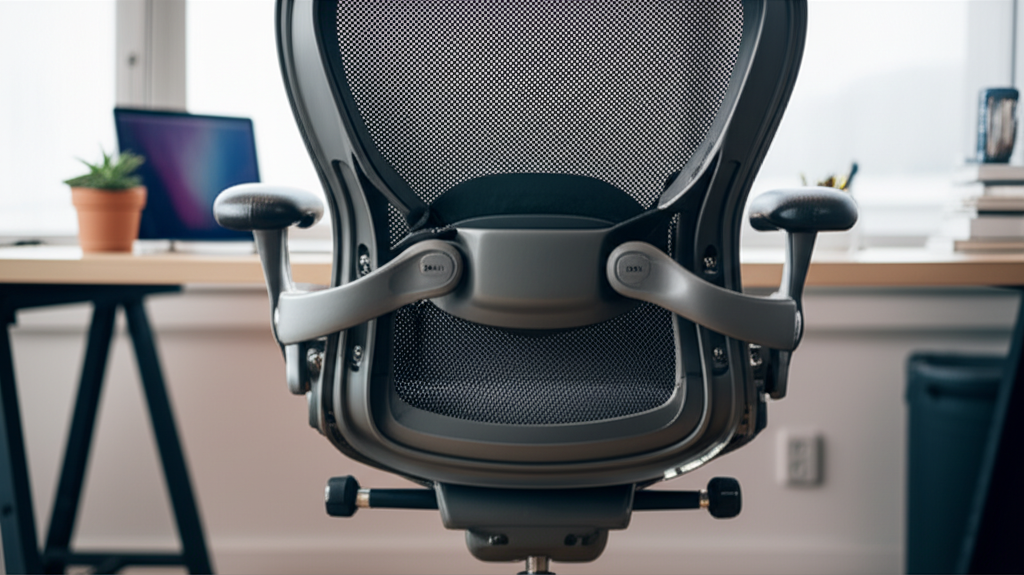
Before you start adjusting, it’s good to know the parts of your Aeron chair. This helps you understand what each adjustment does. The Aeron chair has a distinctive mesh material. It also has a unique tilt mechanism. Key adjustable parts include the lumbar support, armrests, and tilt tension. Knowing these parts makes the adjustment process much easier.
The Mesh: This breathable material is key to the Aeron’s comfort. It distributes weight evenly. It also keeps you cool.
The PostureFit SL: This system provides lower back support. It’s designed to mimic the natural curve of your spine.
The Tilt Mechanism: This allows you to recline safely. It lets you rock back without feeling unstable.
Armrests: These support your arms and shoulders. They help reduce strain on your neck.
Understanding these components is the first step. It helps you appreciate the design. It also prepares you for making the right adjustments.
The Lumbar Support: Finding Your Spine’s Sweet Spot
The Aeron chair’s lumbar support is crucial for back health. It’s designed to support the natural curve of your lower back. This area, called the lumbar region, often needs extra attention. Improper support here can lead to pain and fatigue. The PostureFit SL system is adjustable. You can move it up and down. You can also adjust its depth. This allows you to customize the support precisely.
Adjusting the PostureFit SL
1. Locate the Pad: Find the adjustable pad at the back of the chair. It’s usually a small, curved piece.
2. Adjust Height: Slide the pad up or down. You want it to align with the curve of your lower back.
3. Adjust Depth: Most models have a dial or lever. This controls how much the pad pushes forward. Start with a gentle pressure. You should feel supported, not pushed out of the chair.
4. Test the Fit: Sit back in the chair. Does it feel like your lower back is supported? Is there a gentle pressure? Adjust until it feels just right for you.
Getting this right is vital. It helps maintain good posture throughout your workday. This reduces the risk of chronic back issues.
Armrest Adjustments: Comfort for Shoulders and Neck
Armrests are more than just a place to rest your arms. Proper armrest height and position can significantly impact your shoulder and neck comfort. If armrests are too high, they force your shoulders up. If they are too low, you might slouch. The Aeron chair offers adjustable armrests on many models. These adjustments help maintain a relaxed upper body posture.
Types of Armrest Adjustments
Height Adjustment: Most Aeron chairs allow you to raise or lower the armrests. This is usually done with a button or lever under the armrest pad.
Pivot (Angle) Adjustment: Some models let you angle the armrests inward or outward. This helps support your forearms when typing.
Forward/Backward Adjustment: Newer models may also allow you to slide the armrests forward or backward. This ensures they are positioned correctly relative to your desk.
How to Set Your Armrests
1. Sit Upright: Sit in your chair as you normally would.
2. Adjust Height: Set the armrest height so your shoulders are relaxed. Your elbows should be at about a 90-degree angle when your hands are on your desk or keyboard.
3. Adjust Pivot/Depth: If your armrests pivot, angle them slightly inward. This should comfortably support your forearms. If they slide, ensure they are not too far forward or back.
4. Check for Tension: Your armrests should feel stable. They shouldn’t wobble or droop.
Correctly adjusted armrests prevent upper body strain. They are essential for long work sessions.
Seat Depth and Tilt: Finding Your Ideal Seating Position
The seat of your Aeron chair plays a big role in overall comfort. Proper seat depth ensures your thighs are supported. It also prevents pressure behind your knees. The tilt function allows you to adjust the angle of the seat and back. This can help change your posture and relieve pressure points.
Seat Depth Adjustment
Many Aeron chairs have a seat depth adjustment. This is often a lever located under the front edge of the seat.
1. Locate the Lever: Find the adjustment lever.
2. Adjust: Lift the lever and gently slide the seat forward or backward.
3. Check the Fit: You should be able to fit two to three fingers between the front edge of the seat and the back of your knees. This ensures good circulation.
Seat Tilt and Recline
The Aeron chair has a sophisticated tilt mechanism. It allows for smooth reclining. There’s usually a tension knob to control how easily you can recline. There might also be a lock to keep the chair in a specific upright or reclined position.
1. Tension Control: Look for a knob, often under the seat on the right side. Turn it clockwise to make reclining harder. Turn it counter-clockwise to make it easier.
2. Tilt Lock: Some models have levers to lock the tilt in different positions. Experiment to find a position that feels comfortable for working or relaxing.
These adjustments help distribute your weight. They reduce pressure on your spine and hips.
Mastering the Tilt Tension and Lock
The tilt tension on an Aeron chair controls how much effort it takes to lean back. Finding the right tension is key to comfortable movement. Too loose, and you might feel unstable. Too tight, and you won’t be able to recline at all. The tilt lock allows you to set the chair at a specific angle. This is useful for focused work or relaxed viewing.
Adjusting Tilt Tension
1. Locate the Knob: The tilt tension knob is typically found on the right side, under the seat.
2. Test and Adjust: Sit in the chair and gently lean back. Turn the knob clockwise to increase resistance (make it harder to tilt). Turn it counter-clockwise to decrease resistance (make it easier to tilt).
3. Find Your Balance: Aim for a tension that allows you to lean back smoothly. You should feel supported, not like you’re fighting the chair.
Using the Tilt Lock
1. Engage the Lock: On many Aeron models, there’s a lever (often on the left side) to control tilt lock. Pushing it forward typically engages the lock in the upright position. Pulling it back usually unlocks the tilt.
2. Experiment with Positions: Try locking the chair in a slightly reclined position. This can offer a good balance between upright focus and relaxed posture.
These features allow you to adapt the chair’s movement to your personal preference. It supports dynamic sitting throughout the day.
Understanding the Pneumatic Cylinder: Seat Height Adjustment
The pneumatic cylinder is what allows you to easily adjust your seat height. This is one of the most fundamental adjustments for any ergonomic chair. Proper seat height ensures your feet are flat on the floor. Your knees should be at about a 90-degree angle. This alignment is critical for good circulation and posture.
How to Adjust Seat Height
1. Locate the Lever: The seat height adjustment lever is typically found on the right side, under the seat.
2. To Raise the Seat: While seated, lift the lever up. Your weight will cause the seat to rise.
3. To Lower the Seat: While seated, lift the lever up. Your weight will cause the seat to lower.
4. Find Your Sweet Spot: Adjust the height until your feet are flat on the floor. Your thighs should be parallel to the ground. Your knees should be bent at roughly a 90-degree angle.
Why Correct Height Matters
Sitting at the correct height reduces pressure on your thighs. It also prevents your feet from going numb. Good height alignment helps maintain the natural curve of your spine. It ensures your desk and monitor are also at optimal heights relative to your body.
The Importance of Armrest Width (If Applicable)
While not all Aeron chairs have adjustable armrest width, some newer or upgraded models do. If yours does, it’s another crucial adjustment for personalized comfort. The ideal armrest width keeps your arms supported without forcing your shoulders to hunch inwards or spread too far apart.
Adjusting Armrest Width
1. Locate the Mechanism: This adjustment is usually found at the base of the armrest, where it connects to the chair. There might be a dial or a lever.
2. Adjust: Turn the dial or move the lever to widen or narrow the armrests.
3. Find the Right Position: Your armrests should be positioned so that your forearms rest comfortably on them. Your shoulders should remain relaxed and down. You shouldn’t feel any strain or pressure.
Proper armrest width contributes to a neutral wrist and arm position. This is vital for preventing repetitive strain injuries.
Beyond Basic Adjustments: Advanced Tips and Considerations
Once you’ve mastered the basic Aeron chair adjustments, there are a few advanced tips. These can further enhance your comfort and support. Considering accessories and professional advice can also be beneficial. Every body is different. What works perfectly for one person might need tweaking for another.
Consider the Monitor and Desk Setup
Your chair is part of a larger ergonomic system. Ensure your desk and monitor are also set up correctly. Your monitor should be at eye level. Your keyboard and mouse should be within easy reach. This prevents you from leaning forward or straining.
Accessories for Enhanced Comfort
Footrest: If your feet don’t comfortably reach the floor, a footrest can help.
Lumbar Pillow: While the PostureFit SL is excellent, some users prefer additional support. A small lumbar pillow can provide extra comfort.
Seat Cushion: For extended sitting, a breathable seat cushion might add an extra layer of comfort.
Professional Ergonomic Assessment
If you experience persistent pain or discomfort, consider an ergonomic assessment. A professional can evaluate your entire workspace. They can provide personalized recommendations for your chair and setup. Websites like the Occupational Safety and Health Administration (OSHA) offer guidance on ergonomic principles.
Regular Re-evaluation
Your needs may change over time. It’s a good idea to re-evaluate your chair settings periodically. Even small adjustments can make a difference. Listen to your body. Don’t hesitate to make changes.
Troubleshooting Common Aeron Chair Issues
Even with careful adjustments, you might encounter minor issues. Knowing how to troubleshoot can save you frustration. Most problems are easily resolved with a little patience.
Squeaking Noises
Cause: Often due to friction between parts.
Solution: Try tightening bolts or applying a small amount of silicone lubricant to moving joints. Ensure all parts are clean.
Difficulty Adjusting Levers
Cause: Debris, lack of lubrication, or improper use.
Solution: Ensure levers are clean. Gently try to move them. If stiff, a little silicone spray might help. Consult the manual for specific lever operation.
Uneven Support
Cause: Incorrect adjustment of lumbar support or seat tilt.
Solution: Revisit the lumbar support and seat tilt adjustment steps. Ensure they are centered and providing balanced support.
Chair Tilting Unintentionally
Cause: Tilt tension set too low or tilt lock disengaged.
Solution: Adjust the tilt tension knob. Ensure the tilt lock lever is in the desired position.
These common issues are usually fixable. If problems persist, contact Herman Miller support.
Frequently Asked Questions About Aeron Chair Adjustments
How do I know if my Aeron chair is adjusted correctly?
You’ll know your Aeron chair is adjusted correctly when you feel comfortable and supported. Your posture should be neutral, with your feet flat, knees at 90 degrees, and back supported. There should be no strain on your neck, shoulders, or wrists.
Can I adjust the Aeron chair for different tasks?
Yes, you can adjust the Aeron chair for different tasks. For focused work, you might prefer a more upright position with locked tilt. For breaks or relaxed thinking, you can unlock the tilt and lean back. Experiment with the tension to find what works best for you.
How often should I readjust my Aeron chair?
It’s a good idea to check your Aeron chair adjustments periodically, perhaps every few weeks or months. Your body’s needs can change, and you might discover new comfort zones. Also, readjust if you change your desk height or setup.
What is the PostureFit SL and how do I use it?
The PostureFit SL is the lumbar support system on the Aeron chair. It’s designed to support the natural curve of your lower back. You adjust its height and depth to match your spine’s contours. It should provide gentle, firm support without being uncomfortable.
Where can I find the adjustment levers on my Aeron chair?
Adjustment levers are typically located under the seat. The seat height lever is usually on the right side. Tilt tension knobs are also often on the right side. Tilt lock levers are commonly on the left side. Refer to your specific Aeron chair model’s manual for exact locations.
Is the Aeron chair suitable for very tall or very short people?
The Aeron chair is designed to accommodate a wide range of users. Its extensive adjustability, including seat height, armrest height, and lumbar support, helps most people find a comfortable fit. For extreme heights, specific sizes (A, B, C) and accessories like footrests might be necessary.
Conclusion: Unlock Your Best Workday with Perfect Aeron Chair Adjustments
Mastering your Herman Miller Aeron chair adjustments is more than just a comfort upgrade. It’s an investment in your health and productivity. By taking the time to fine-tune the lumbar support, armrests, seat depth, and tilt, you create a personalized seating experience. This tailored setup minimizes strain and maximizes focus, transforming your workday. Remember to listen to your body. Make adjustments as needed. A well-adjusted Aeron chair will support you through countless productive hours. Start experimenting today and feel the difference.
Explore more tips for optimizing your home office setup on ToolGuider.com.
