


Published on: September 4, 2025 | Updated on: September 4, 2025
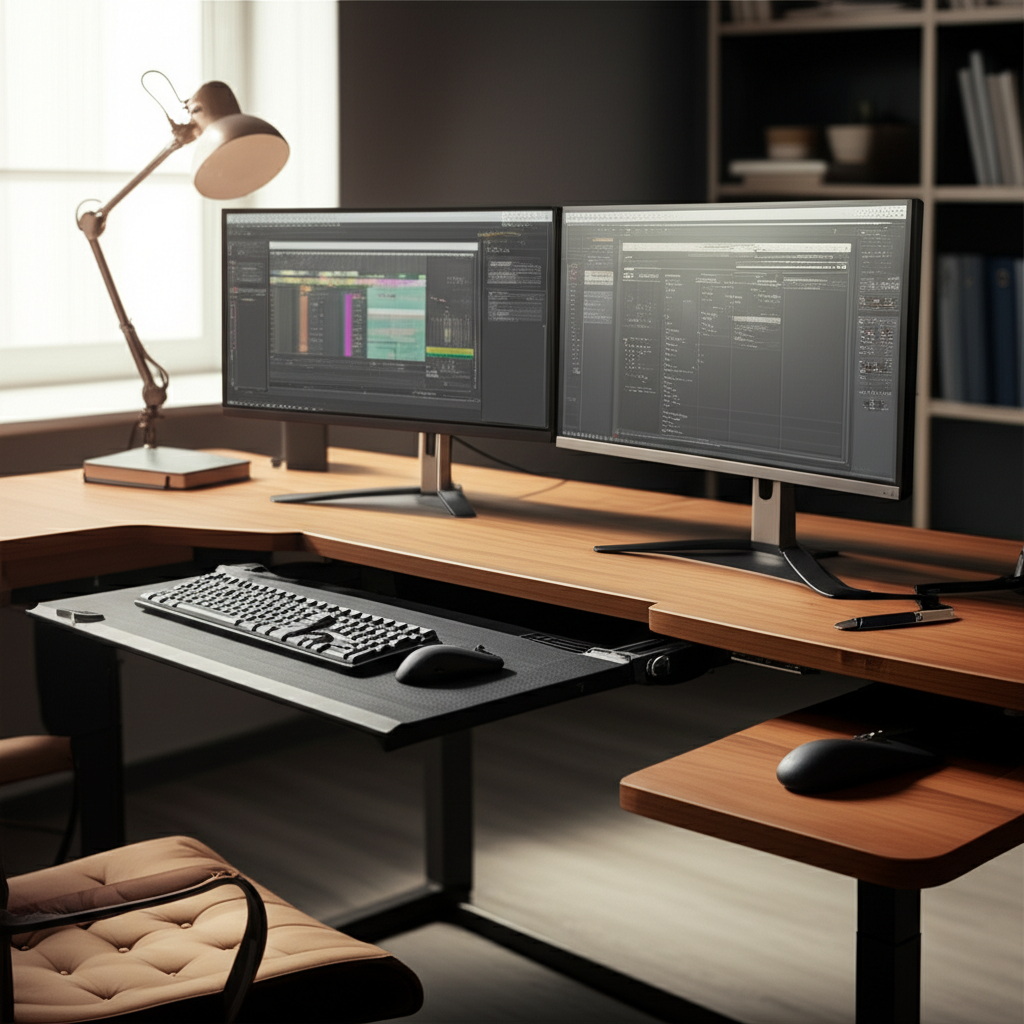
Master your dual monitor desk with the perfect keyboard tray setup. Discover essential tips for ergonomics, space-saving, and enhanced productivity, transforming your workspace into an efficient and comfortable haven.
Setting up a dual monitor desk can feel like a game-changer for productivity, but it often comes with a new challenge: fitting everything comfortably. You’ve got your screens positioned just right, but your keyboard feels awkward, or maybe it’s hogging precious desk space. This is a common hurdle many remote workers face, leading to discomfort and reduced efficiency. Don’t worry, I’m here to guide you through creating the ideal keyboard tray setup for your dual monitor desk, ensuring a workspace that’s both functional and enjoyable. We’ll cover everything from choosing the right tray to fine-tuning your ergonomics.
Why a Keyboard Tray is Crucial for Dual Monitor Setups

A keyboard tray isn’t just an accessory; it’s a vital component for optimizing your workspace, especially when managing the demands of a dual monitor setup. It directly addresses common ergonomic issues and frees up valuable desk real estate. Proper placement can significantly reduce strain on your wrists, arms, and shoulders, allowing you to work longer and more comfortably.
This thoughtful addition can transform a cluttered or uncomfortable desk into a streamlined productivity hub. By lifting your keyboard and mouse to the correct height and angle, you support a more natural posture, preventing the aches and pains that can sideline even the most dedicated worker. It’s about creating a sustainable and healthy work environment.
Elevating Ergonomics: The Foundation of Comfort
The primary benefit of a keyboard tray is its ability to drastically improve your ergonomic posture. When your keyboard and mouse are at the correct height relative to your elbows, you promote neutral wrist alignment. This simple adjustment is key to preventing repetitive strain injuries like carpal tunnel syndrome.
Your forearms should be parallel to the floor, with your wrists straight and relaxed. A keyboard tray allows you to achieve this ideal position, even if your desk height isn’t perfectly suited. This proactive approach to ergonomics is essential for long-term well-being and sustained productivity.
Maximizing Desk Space: A Dual Monitor Essential
Dual monitor setups inherently consume a significant amount of desk surface. A keyboard tray, particularly an under-desk model, liberates this space. It allows you to store your keyboard and mouse out of sight when not in use, creating a cleaner, more organized, and visually appealing workspace.
This reclaimed space can be used for other essentials, like writing notes, holding a reference book, or simply providing a more open area to work. A tidy desk contributes to a tidy mind, reducing distractions and fostering a sense of calm. This is particularly impactful for those who find visual clutter to be a productivity killer.
Enhancing Productivity Through Better Workflow
When your keyboard and mouse are positioned ergonomically, you reduce physical discomfort, which directly translates to improved focus and efficiency. Less time spent fidgeting to find a comfortable position means more time dedicated to your tasks. A well-organized setup also streamlines your workflow, making transitions between monitors and tasks smoother.
The ease of access and comfortable positioning provided by a keyboard tray can subtly but surely boost your overall output. It’s a small change that yields significant returns in terms of sustained concentration and reduced fatigue. This optimization creates a more fluid and responsive work experience.
Types of Keyboard Trays for Your Dual Monitor Desk
The world of keyboard trays is diverse, offering various styles to suit different desk types and user preferences. Understanding these options is the first step in selecting the perfect fit for your dual monitor setup. Each type has its own set of advantages and considerations.
From simple under-desk mounts to more elaborate swing-arm designs, there’s a solution for almost every need. Your choice will depend on factors like desk construction, available space, and desired adjustability. Let’s explore the most common types to help you make an informed decision.
Under-Desk Keyboard Trays: The Space-Saving Champions
These are perhaps the most popular type for dual monitor setups due to their excellent space-saving capabilities. They mount directly beneath your desk surface, keeping your keyboard and mouse tucked away when not in use. This significantly declutters your main desk area, which is especially beneficial with two monitors.
Under-desk trays typically slide out smoothly, offering a stable platform for typing and mousing. Many come with adjustable height, tilt, and swivel features, allowing for precise ergonomic customization. Their discreet nature makes them ideal for minimalist desk setups or smaller workspaces.
Pros:
Excellent space-saving design.
Keeps desk surface clear and organized.
Often highly adjustable for ergonomics.
Discreet and visually appealing.
Cons:
May require drilling into desk surface for installation.
Can be challenging to install on desks with solid modesty panels or thick edges.
Limited adjustability if mounted too high or too low.
Clamp-On Keyboard Trays: The Non-Invasive Solution
For those who prefer not to drill into their desk, clamp-on keyboard trays offer a fantastic alternative. These trays attach securely to the edge of your desk using sturdy clamps, making installation straightforward and reversible. They are a great option for rented spaces or if you frequently rearrange your office.
Clamp-on trays provide similar ergonomic benefits to under-desk models, often featuring adjustable height and tilt. The key difference is their mounting method, which avoids permanent modifications. Ensure your desk edge is suitable for clamping, typically needing a clear edge with sufficient thickness.
Pros:
No drilling required, easy installation and removal.
Suitable for various desk types, including those with delicate surfaces.
Offers good adjustability for ergonomic positioning.
Allows for quick disassembly if needed.
Cons:
May not be suitable for very thick or unusually shaped desk edges.
Can potentially leave marks on the desk surface over time depending on clamp pressure and material.
May slightly reduce legroom depending on the tray’s depth and mounting position.
Standing Desk Converters and Integrated Solutions
Some standing desk converters come with built-in keyboard trays, offering an all-in-one solution for ergonomic flexibility. These units sit on top of your existing desk and allow you to adjust the monitor and keyboard platform to standing or sitting heights. If your standing desk doesn’t have an integrated tray, you might consider a standalone unit that complements it.
For standing desks, a keyboard tray is almost essential to achieve proper ergonomic height when sitting. It ensures that your transition between sitting and standing maintains your ideal ergonomic alignment. Many standalone trays can also be mounted to the underside of a standing desk.
Pros:
Provides a complete sit-stand ergonomic solution.
Often includes adjustable monitor platforms as well.
Promotes easy switching between working postures.
Cons:
Can be bulkier and more expensive than simple trays.
May limit the positioning flexibility of individual components.
Requires careful consideration of weight capacity for both keyboard and monitors.
Key Considerations for Your Keyboard Tray Setup
Choosing the right keyboard tray is only half the battle. The real magic happens in how you set it up for your specific dual monitor desk arrangement. Every desk and user is unique, so personalization is key to unlocking true comfort and efficiency.
Think of this as tailoring the solution to your body and your workflow. We’ll delve into the crucial factors that will make or break your keyboard tray setup experience. These details are what elevate a good setup to a great one.
Desk Compatibility and Mounting Options
Before purchasing, assess your desk’s construction. Is it solid wood, particleboard, or metal? Does it have a thick edge, a thin edge, or no edge at all (like a glass-top desk)? This information dictates which mounting method (screws or clamps) is feasible and secure.
For under-desk trays, check the underside for obstructions like drawers or support beams that might interfere with installation. If you have a desk with a very thin edge or a delicate surface, a clamp-on model might be your only viable option without risking damage. Always refer to the tray manufacturer’s guidelines for compatibility.
Adjustability: Height, Tilt, and Swivel
The hallmark of a truly effective keyboard tray is its adjustability. Look for trays that allow you to fine-tune the height, tilt angle, and swivel of both the keyboard and mouse platforms. This granular control is what enables you to achieve perfect ergonomic alignment for your body.
Height: Your keyboard should be at elbow height.
Tilt: A slight negative tilt (keyboard sloping away from you) is often recommended to keep wrists straight.
Swivel: The ability to swivel allows you to position your keyboard and mouse directly in front of you, reducing awkward reaching.
Tray Size and Mouse Platform
Consider the size of your keyboard and mouse, and how you use them. Do you have a full-size keyboard with a number pad, or a compact tenkeyless model? Do you prefer a large mousepad area or a smaller, more focused space? Ensure the tray you choose has ample room for your peripherals.
Many trays offer a combined keyboard and mouse platform, while others have separate, adjustable sections. A dedicated, larger mouse platform can significantly improve comfort and precision, especially if you use a high-sensitivity mouse or play games. It’s important to have enough space to move your mouse freely without falling off the edge.
Material and Build Quality
The material and construction of the keyboard tray will impact its durability, stability, and overall feel. Most trays are made from wood composites, metal, or durable plastics. Look for sturdy construction, smooth-gliding mechanisms, and robust mounting hardware.
A well-built tray will feel solid and stable when you type, without excessive wobble. This stability is crucial for both comfort and preventing accidental keystrokes or mouse movements. Investing in a quality tray means investing in long-term comfort and reliability.
Step-by-Step Guide to Your Keyboard Tray Setup
Now that you understand the types and key considerations, let’s walk through the process of setting up your keyboard tray for your dual monitor desk. Following these steps will help ensure a smooth installation and optimal ergonomic positioning. Precision during setup pays dividends in comfort.
This process requires a bit of patience and attention to detail, but the end result is a significantly improved workspace. Remember to always prioritize safety during installation. Having a helper can make the process easier, especially for under-desk mounting.
Step 1: Prepare Your Workspace and Gather Tools
Clear your desk and the area underneath it. Ensure you have good lighting to see what you’re doing. For under-desk installation, you’ll likely need a drill, measuring tape, pencil, and possibly a screwdriver. For clamp-on trays, you might only need a screwdriver or even just your hands.
Read the manufacturer’s instructions thoroughly before you begin. Familiarize yourself with the components and the recommended mounting points. This preparation step prevents mistakes and ensures a more efficient installation.
Step 2: Determine the Ideal Mounting Position
This is arguably the most critical step for achieving perfect ergonomics. Sit at your desk in your typical working posture. Your elbows should be at roughly a 90-degree angle, and your forearms should be parallel to the floor.
Height: Measure the distance from your seated elbow height to the underside of your desk. This measurement will guide where you position the tray.
Depth: Ensure the tray is deep enough to comfortably accommodate your keyboard and mouse, and positioned so you aren’t too close or too far from your monitors.
Centering: For a dual monitor setup, center the keyboard tray directly in front of your primary monitor or the center of your dual display arrangement.
Step 3: Install the Keyboard Tray
For Under-Desk Trays:
1. Mark Mounting Points: Use your measuring tape and pencil to mark the exact drilling locations on the underside of your desk, based on the tray’s mounting bracket and your desired position. Double-check your measurements.
2. Drill Pilot Holes: Drill pilot holes at your marked points. These should be slightly smaller than the screws to ensure a secure fit without splitting the wood.
3. Attach Mounting Bracket: Align the mounting bracket over the pilot holes and secure it with the provided screws. Ensure it’s flush and firmly attached.
4. Attach Tray: Slide or clip the keyboard tray onto the mounted bracket according to the manufacturer’s instructions. Test its sliding and tilting mechanisms.
For Clamp-On Trays:
1. Position the Tray: Place the tray in its desired position under the desk edge.
2. Tighten Clamps: Securely tighten the clamps onto the desk edge. Ensure they are snug but avoid overtightening, which could damage the desk.
3. Adjust Tilt/Height: Most clamp-on trays have adjustment screws or levers to fine-tune the tilt and height.
Step 4: Adjust for Perfect Ergonomics
With the tray installed, it’s time for the fine-tuning. Place your keyboard and mouse on the tray. Sit back down and assess your posture:
Elbows: Are they bent at about 90 degrees? Adjust the tray height if needed.
Wrists: Are they straight and relaxed? Adjust the tilt angle. If the tray doesn’t tilt, you might need a padded wrist rest.
* Mouse Position: Is your mouse easily accessible without excessive reaching or twisting? Adjust the swivel or position of the mouse platform.
This iterative process of adjusting and testing is crucial. Spend a few minutes typing and mousing to get a feel for the new position.
Step 5: Test and Refine
Use your setup for a short period, perhaps an hour, and then reassess. Do you feel any strain? Are there any awkward movements? Small adjustments can make a big difference. You might find you prefer a slightly different tilt or a minor shift in height.
Don’t hesitate to make further adjustments until you achieve optimal comfort. Your keyboard tray setup for a dual monitor desk should feel natural and supportive. It’s a personalized solution, so take the time to get it just right for you.
Optimizing Your Dual Monitor Keyboard Tray Setup
Achieving the perfect keyboard tray setup involves more than just installation; it’s about integrating it seamlessly into your dual monitor workflow for maximum benefit. Small additions and strategic placement can elevate your comfort and efficiency even further. Think about how you interact with your entire workspace.
Consider accessories that complement your keyboard tray and dual monitors, creating a truly harmonious and productive environment. These enhancements can refine your setup and address specific needs.
The Importance of Wrist Rests
Even with a perfectly adjusted keyboard tray, a good wrist rest can provide additional comfort and support. It helps maintain a neutral wrist posture by preventing you from resting your wrists directly on the desk or tray edge, which can impede circulation.
Choose a wrist rest that matches the height and depth of your keyboard tray. Gel-filled or memory foam options offer cushioning and support. Ensure it’s not too high, as this can force your wrists into an unnatural upward angle.
Mouse Positioning and Ergonomics
Your mouse placement is just as critical as your keyboard’s. Ensure your mouse sits at the same height and tilt as your keyboard, allowing for a relaxed arm position. If your tray has a separate mouse platform, adjust it for optimal comfort and reach.
Consider an ergonomic mouse if you experience wrist discomfort. These mice are designed to keep your hand in a more natural “handshake” position, reducing strain. A large mousepad can also provide a smoother, more consistent surface for your mouse.
Cable Management for a Clean Setup
With dual monitors and a keyboard tray, cables can quickly become a tangled mess. Invest in cable management solutions like zip ties, cable sleeves, or under-desk cable trays. This not only looks cleaner but also prevents cables from snagging or interfering with your keyboard and mouse movement.
A tidy cable setup contributes to a less cluttered workspace, reducing visual distractions and making it easier to keep your area clean. It’s a small detail that has a significant impact on the overall feel and functionality of your desk.
Lighting and Monitor Placement Synergy
While not directly part of the keyboard tray setup, proper lighting and monitor placement are crucial for overall ergonomics and productivity. Ensure your monitors are positioned at eye level to prevent neck strain, and that your workspace is well-lit to reduce eye fatigue.
Position your monitors so that the keyboard tray doesn’t cast shadows on your work. The goal is a comfortable, glare-free environment that supports long hours of focused work. Good lighting complements the ergonomic benefits of your keyboard tray.
Common Pitfalls to Avoid with Dual Monitor Keyboard Tray Setups
Even with the best intentions, setting up a keyboard tray for your dual monitor desk can sometimes lead to unintended consequences. Being aware of these common mistakes can help you sidestep them and ensure a truly optimized experience. Avoiding these pitfalls is key to long-term satisfaction.
Many of these issues stem from rushing the process or not considering the nuances of individual needs. Let’s explore what to watch out for.
1. Incorrect Height Adjustment
Setting the keyboard tray too high or too low is a very common mistake. If it’s too high, your shoulders will tense up as you raise them to reach the keys. If it’s too low, you’ll hunch forward, straining your back and neck.
Solution: Always prioritize elbow height. Sit naturally and adjust until your forearms are parallel to the floor and your wrists are straight.
2. Ignoring Wrist Position
Some users assume that simply having a tray means perfect ergonomics. However, if the tray’s tilt is wrong, or if you’re resting your wrists heavily on the edge, you can still experience discomfort. This can lead to carpal tunnel syndrome or tendonitis.
Solution: Aim for a neutral wrist position. Use a slight negative tilt if possible, and consider a padded wrist rest that supports the base of your palm, not your wrist itself.
3. Insufficient Mouse Space
When setting up a dual monitor keyboard tray, people often focus solely on the keyboard. However, the mouse requires just as much attention. If your mouse platform is too small or poorly positioned, you’ll end up twisting your arm or reaching awkwardly.
Solution: Ensure there’s ample, comfortable space for your mouse. Adjust the mouse platform so it aligns with your keyboard’s ergonomic position, allowing for relaxed arm movement.
4. Over-Reliance on Default Settings
Many adjustable trays come with preset tilt or height locks. While convenient, these defaults might not be ideal for your specific body type or desk setup. Sticking to them can mean missing out on peak ergonomic comfort.
Solution: Experiment with all the adjustable features. Don’t be afraid to unlock and reposition until you find what feels best for your unique needs.
5. Neglecting Desk Integrity
When installing under-desk trays, drilling into the wrong spot or using the wrong screws can damage your desk. Similarly, overtightening clamps on a clamp-on tray can leave permanent marks or indentations.
Solution: Measure twice, drill once. Use appropriate hardware for your desk material and always follow installation guidelines. For clamps, ensure even pressure and consider felt pads if you’re worried about the surface.
6. Cramped Legroom
Mounting a tray too far back or choosing a tray that’s too deep can severely limit your legroom. This can lead to discomfort, restlessness, and difficulty finding a comfortable seated position, especially during longer work sessions.
Solution: Position the tray so there’s adequate clearance for your knees and thighs. Ensure you can comfortably tuck your legs underneath without obstruction.
7. Forgetting the Mouse Pad
While some trays have textured surfaces, many benefit from a good mouse pad. A mouse pad provides a consistent surface for optical and laser sensors, improving tracking accuracy and reducing friction. Without one, your mouse might skip or feel less responsive.
Solution: Pair your keyboard tray with a quality mouse pad that offers good glide and control. Consider one that matches the size of your mouse platform.
Integrating Your Keyboard Tray with Dual Monitor Arm Setups
For many users with dual monitors, a monitor arm is a common and highly recommended addition. Combining a keyboard tray with a monitor arm offers the ultimate in ergonomic flexibility and desk space optimization. This pairing creates a truly dynamic and adaptable workstation.
The synergy between these two components can significantly enhance your comfort and productivity. Let’s explore how to best integrate them for a seamless experience. This combination is a hallmark of a truly professional home office setup.
The Benefits of a Combined Setup
A monitor arm allows you to position your dual displays at the perfect height, distance, and angle, freeing up desk space and reducing neck strain. When paired with an under-desk keyboard tray, you create a floating, highly adjustable ergonomic zone. This setup minimizes clutter and maximizes your ability to fine-tune your entire workstation.
This integrated approach ensures that both your visual input (monitors) and your primary input devices (keyboard and mouse) are perfectly aligned with your body’s needs. It’s about creating a cohesive and responsive work environment.
Installation Order and Considerations
Generally, it’s best to install the keyboard tray first, especially if it requires drilling. This ensures you don’t interfere with potential monitor arm mounting points or accidentally damage newly installed components. Once the keyboard tray is securely in place, you can then mount your monitor arm.
When positioning your monitor arm’s base or clamp, ensure it doesn’t interfere with the operation of your keyboard tray. Some desk grommet mounts for monitor arms might require specific placement to avoid hitting the tray mechanism. Check clearance carefully.
Achieving Optimal Ergonomic Alignment
With both components installed, the real goal is to achieve perfect alignment. Sit at your desk and adjust your monitor arm so the top of your screens are at or slightly below eye level. Then, adjust your keyboard tray so your elbows are at 90 degrees and wrists are straight.
The key is to ensure that your visual focus and your typing/mousing posture are harmonized. There should be no awkward reaching or twisting required for either task. This integrated setup allows for fluid transitions between viewing your monitors and interacting with your keyboard and mouse.
Cable Management for a Unified Look
With monitor arms and keyboard trays, cable management becomes even more critical. Most monitor arms come with built-in cable management channels. Utilize these effectively, and combine them with under-desk cable management solutions for your keyboard tray and computer connections.
A clean, unified look not only enhances aesthetics but also prevents cables from snagging or creating a tripping hazard. It contributes to a more professional and less distracting workspace.
Enhancing Your Keyboard Tray Setup with Accessories
Once your keyboard tray is set up for your dual monitor desk, consider a few key accessories to further refine your comfort, productivity, and overall workspace experience. These additions can transform a functional setup into an exceptionally comfortable and efficient one. They address the finer points of daily work.
These are the finishing touches that personalize your space and cater to your specific working style. Think about what would make your daily routine smoother.
Ergonomic Mouse Pads and Wrist Rests
As mentioned earlier, a good mouse pad is essential for smooth mouse operation. Pairing it with a quality wrist rest for both your keyboard and mouse can significantly reduce fatigue during long work sessions. Look for materials that are comfortable against the skin and provide adequate support.
The right wrist rest should support the heel of your palm, not your wrist itself, allowing your wrists to remain straight. This prevents pressure points and improves circulation.
Footrests and Lumbar Support
For a truly comprehensive ergonomic setup, consider adding a footrest and lumbar support. A footrest helps maintain proper posture by allowing your feet to rest flat, which can improve circulation and reduce pressure on your lower back. Lumbar support cushions can be added to your chair to provide targeted back support.
These elements work together with your keyboard tray and monitor setup to create a holistic ergonomic solution. They address posture and comfort from head to toe.
Monitor Light Bars
Monitor light bars are a fantastic accessory for dual monitor setups. They illuminate your desk surface and keyboard area without causing glare on your screens, reducing eye strain in lower light conditions. This focused lighting ensures your keyboard tray area is always visible and comfortable to work in.
These lights are typically mounted on top of your monitors, directing light downwards. They are an excellent way to improve visibility without contributing to the ambient light that causes screen glare.
Desk Organization Tools
Keep your newly freed-up desk space organized with drawer organizers, monitor stands with built-in storage, or desktop shelves. Even with an under-desk keyboard tray, maintaining a clutter-free environment is key to sustained productivity and mental clarity.
Small organizers for pens, paper clips, and other essentials can make a big difference. They ensure that everything has its place, reducing the time spent searching for items.
Frequently Asked Questions (FAQ)
Q1: How high should my keyboard tray be for a dual monitor desk?
Your keyboard tray should be positioned so that your elbows are bent at approximately a 90-degree angle when typing, with your forearms parallel to the floor. This allows your wrists to remain straight and relaxed.
Q2: Can I install a keyboard tray on a glass desk?
Yes, but you’ll need to use clamp-on keyboard trays specifically designed for this purpose. Avoid under-desk trays that require drilling into glass surfaces. Ensure the clamps are suitable for the desk’s thickness and material.
Q3: Do I need a wrist rest with a keyboard tray?
While a well-adjusted keyboard tray helps with posture, a wrist rest can provide additional comfort and support, especially during long typing sessions. It helps maintain neutral wrist alignment and prevents pressure points.
Q4: What’s the best type of keyboard tray for saving space with dual monitors?
Under-desk keyboard trays are generally the best for saving space, as they tuck away neatly beneath your desk, keeping your main surface clear. Clamp-on trays also offer good space-saving benefits without requiring desk modifications.
Q5: How do I adjust the tilt on my keyboard tray?
Most adjustable keyboard trays have a tilt mechanism, often controlled by a knob, lever, or button located on the underside or side of the tray. Consult your tray’s manual for specific adjustment instructions. Aim for a slight negative tilt (keyboard sloping away from you) to keep wrists straight.
Q6: My keyboard tray feels wobbly. What can I do?
A wobbly tray usually indicates loose mounting hardware or a poorly secured clamp. Double-check all screws and clamps for tightness. If you’re using an under-desk tray, ensure the mounting bracket is firmly attached to a solid part of the desk. For clamp-on trays, ensure the clamps are securely tightened onto the desk edge.
Conclusion: Your Ergonomic Dual Monitor Oasis Awaits
Mastering your keyboard tray setup for dual monitor desk is a journey towards a more comfortable, productive, and organized workspace. By carefully selecting the right type of tray, paying close attention to ergonomic adjustments, and integrating it thoughtfully with your dual monitors, you can transform your desk into a haven of efficiency. Remember the key principles: ensure your elbows are at 90 degrees, your wrists are straight, and your mouse is within easy reach.
Don’t underestimate the power of small details like wrist rests, proper cable management, and even a good mouse pad. These elements, combined with the core benefits of a well-positioned keyboard tray, create a synergistic effect that significantly reduces physical strain and boosts your focus. Your dual monitor setup deserves a keyboard tray that supports your well-being, and with these essential tips, you’re well on your way to achieving just that. Embrace the process, make the adjustments, and enjoy the enhanced comfort and productivity that a perfect keyboard tray setup for dual monitor desk provides.
